How to Launch Promotion: Step-by-Step Guide
Launching promotion in PromoPilot involves three actions: adding a page, selecting the cascade volume, and confirming the charge. Below, we will break down each screen and each option you will see along the way, including those that are easy to miss.
What You Need Before Launch
- Project — the website you are promoting. Created once: address, language, region, and topic. The project sets the context for the AI that writes texts.
- Page within the project — a specific URL that will receive links. A specific page is always promoted, not the entire site.
- Balance — the charge occurs at the moment of launch. You can top up using a card, crypto, PayPal, or via invoice for legal entities.
Step 1. Add a Page to the Project
Open the project — the link table is located just below the project card. The “Add Link” button accepts both a single address and a list or sitemap.xml if you need to upload many pages at once.
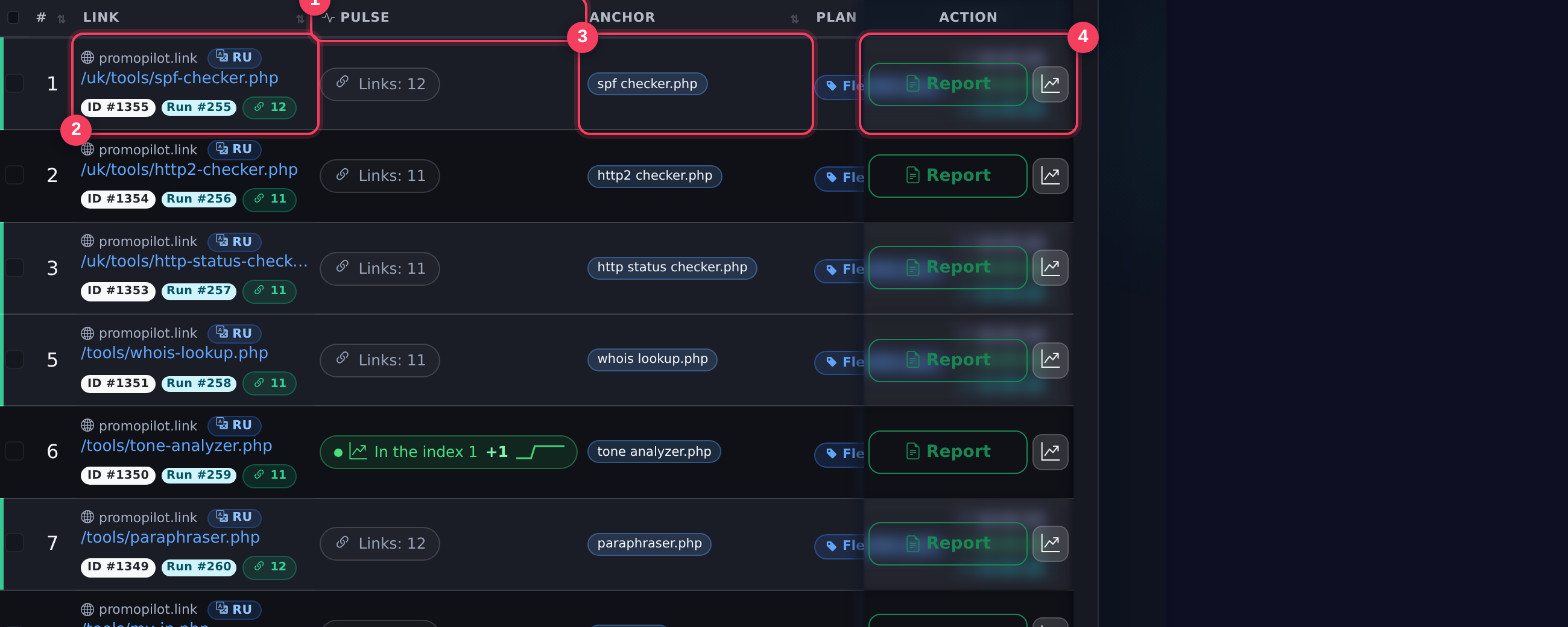
- “Pulse” Column — dynamics of a specific link: position, clicks, indexing. For pages without launches, it says “After the cascade launch” — data will appear when there is something to show.
- Page Address — what is being promoted. The link must lead to the project domain; the system will not accept external addresses.
- Ankors — link texts. You can specify several separated by commas, and the system will distribute them among publications.
- Launch Button — opens a window with tariffs and cascade settings.
Step 2. Choose a Tariff
The tariff is a ready-made configuration of the cascade: how many first-level links there will be, how much amplification, and how many crowd mentions. If the presets do not fit, there is a flexible tariff where each level is configured manually.
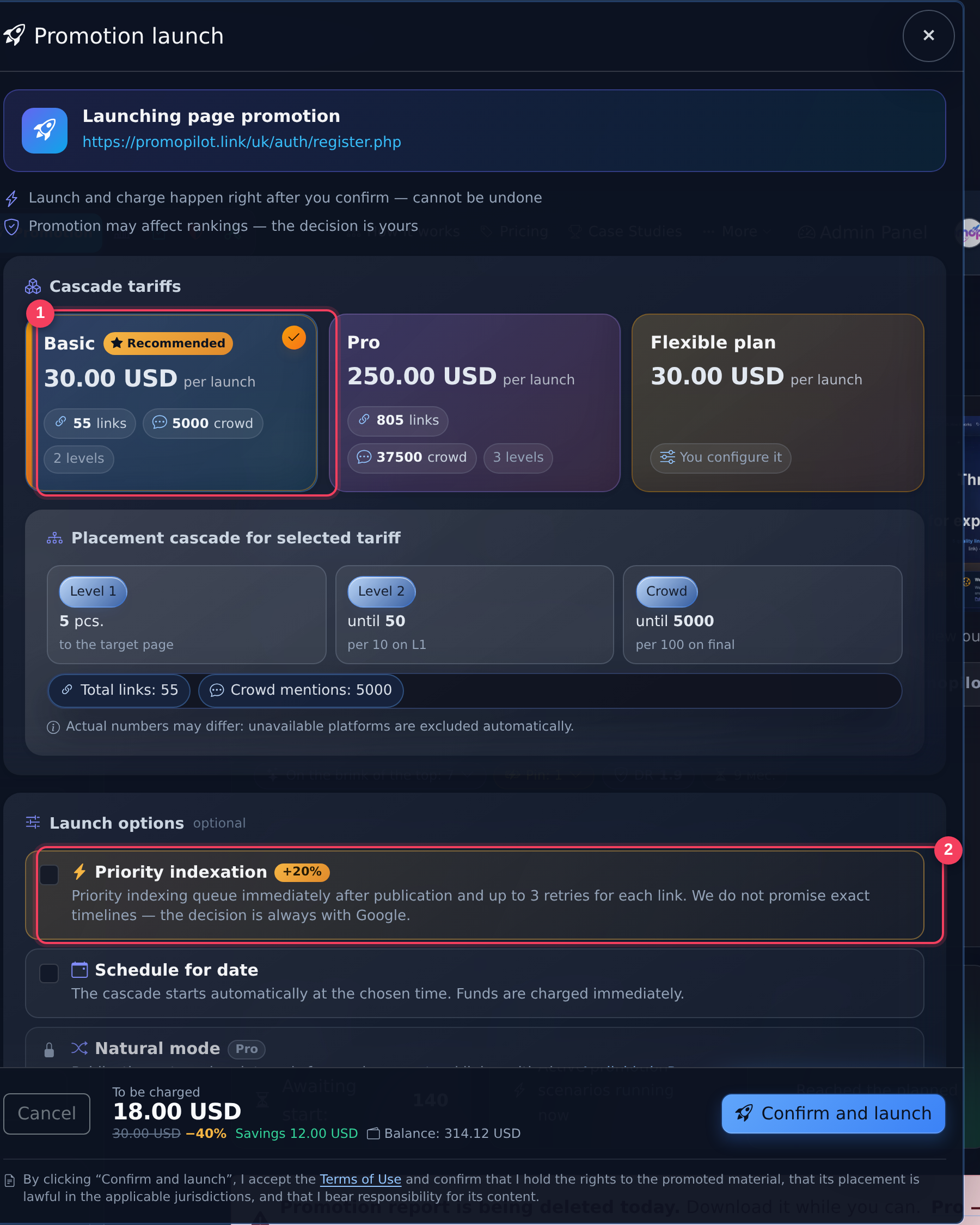
- Tariff Cards — price for the launch and composition of the cascade. Next to it, you can always see how many links and crowd mentions you will receive.
- Priority Indexing — an optional feature: publications go into an accelerated indexing queue and receive up to three retries. The surcharge for the cascade cost is indicated directly on the option card.
What the Cascade Consists Of
| Level | What It Is | Why |
|---|---|---|
| L1 | Articles with a link directly to your page | Transfer weight directly — this is the foundation |
| L2 | Publications linking to L1 articles | Strengthen donors, accelerate their indexing |
| L3 | Mass links to L2 publications | Support indexing of the entire chain |
| Crowd | Mentions on forums and platforms | Make the link growth look natural |
Step 3. Additional Options
- Scheduled Launch — the cascade starts at the selected date and time. Money is charged immediately upon confirmation, not at the moment of launch.
- Natural Mode (for Pro subscribers) — publications are released at uneven intervals, stretched from two hours to a week. This makes the link growth look less mechanical.
- Priority Indexing — accelerated queue and retries. No one promises exact indexing times: the decision is always up to Google.
What Happens After Launch
After that, everything goes automatically, and the status is visible directly in the link table. The cascade goes through stages: queue → first level → second → third → crowd → report ready. For each publication, the system separately checks that the link is indeed in place and sends the page for indexing.
An interim report is available without waiting for the final: it shows what has already been published, what has been checked, and what has been indexed. When the cascade is completed, the report will become final, and a notification will be sent to your email.
When to Expect Results
Publications appear within the first hours, but the link weight is not transferred instantly. Usually, the first changes in positions are noticeable after a few weeks, and the full effect of the cascade unfolds over two to three months — this is how long it takes to index all levels and recalculate the page authority by the search engine. A detailed breakdown by weeks is in the article when to expect results, and if there is no shift after two to three months, go through step-by-step diagnostics.
It is convenient to track dynamics in the “Pulse”: it shows positions, clicks, and indexing for each link and marks the moment of the cascade launch on the graph.