
Promotion Report and Launch Statuses
The cascade report shows what has been done: which publications have been released, on which platforms, with which anchors, what has been verified, and what has been indexed. It is available without waiting for the cascade to complete.
Where to Open the Report
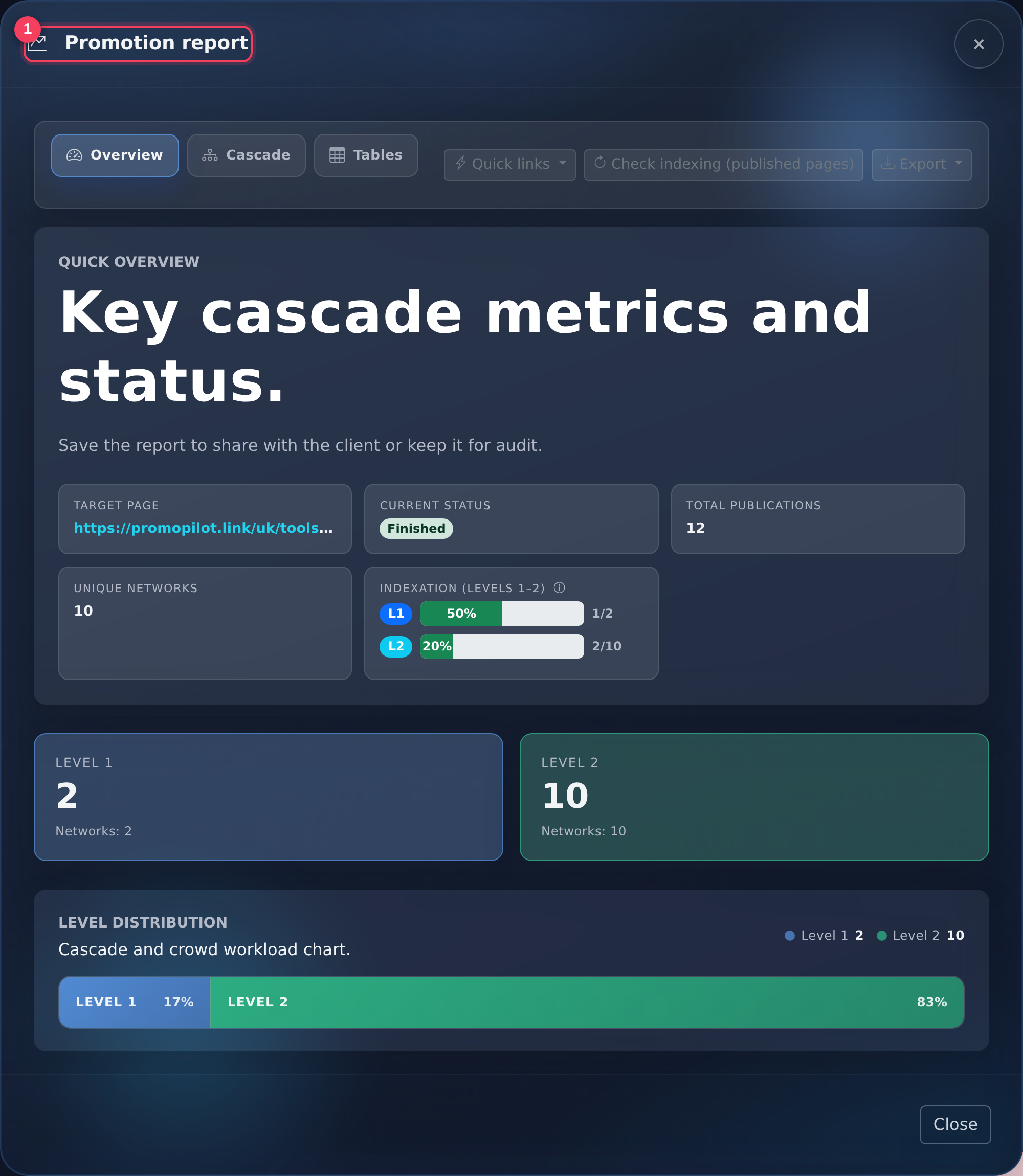
- Report Title — switches for "Overview", "Cascade", and "Tables": summary, level tree, and full list of publications with addresses.
The report button appears in the link bar: during the work, it is "Progress", after completion — "Report". All reports are also collected in the "My Reports" section.
Launch Statuses
| Status | What It Means |
|---|---|
| In Queue | The launch has been accepted and is waiting for free space in the publication queue |
| First Level | Publications are being made with a link to your page |
| Second / Third Level | Publication of reinforcement from the previous level |
| Crowd | Mentions are being placed on forums and platforms |
| Report Being Formed | Publications have been processed, the system is compiling the final report |
| Completed | The cascade has fully processed |
| Error / Canceled | The launch has been stopped and will not continue. If you believe that part of the work has not been completed, please contact support — we will investigate the specific launch |
Intermediate States
In the header of the cabinet and in the link bar, the status is shown in more detail than in the summary above: each level has a separate preparation phase, and for the crowd — waiting for a slot.
| What Is Visible in the Cabinet | What Happens Inside |
|---|---|
| Level 1 (2, 3) — Preparation | Platforms are being selected and texts are being prepared, publications are not yet available. How levels are structured — in the article about cascade levels |
| Crowd Tasks — Preparation | A list of platforms and mention templates is being formed |
| Crowd Tasks: Waiting for Slot | Some tasks are postponed and will be picked up automatically |
| Report Being Formed | Final assembly: recounting verified links and indexing data |
Next to the detailed status, the cabinet shows a simplified one — "In Progress", "Waiting", "Report", "Completed". It is needed to get a quick overview of a long list of links; details can be found inside the report.
There are pauses between levels and within the crowd: the next level starts when the previous one has gathered the required number of verified publications, and some tasks are intentionally distributed over time. An hour or two without visible changes in a large cascade is normal. Timelines are collected in the article "When to Expect Results".
What Does "Verified" Mean
After publication, the system visits the page and ensures that the link is indeed in place and accessible. Only such publications are considered completed. Indexing is also checked: the page is searched in Google results — more details on the page "Link Indexing".
Specific Storage Periods
The report is available for 60 days after the launch is completed, for subscribers of Pro — 180 days. A warning appears in the interface 14 days before deletion. The publications themselves do not go anywhere after the report is deleted — only the compiled summary disappears, so it is more convenient to export immediately after the cascade is completed.
Export
The report is exported to a file — convenient for attaching to client reporting. Pro subscribers can enable White-label: logo, company name, and brand color instead of PromoPilot branding.
Export Formats
The "Export" button in the report opens a menu with all available formats.
| Format | When It Is More Convenient |
|---|---|
| XLSX (Excel) | Main option for tables: opens without encoding settings |
| CSV (Excel, UTF-16) | If Excel on Windows breaks Cyrillic in regular CSV |
| CSV (UTF-8) and CSV (Mac, UTF-8) | Google Sheets, Numbers, import into third-party services |
| HTML | Ready report page — can be attached to an email |
| Print / PDF | Printing via the browser, in the dialog select "Save as PDF". With enabled White-label, the header and footer will already be yours |
| JSON and "Copy JSON" | For your scripts and transferring data to someone else's reporting |
There is also a button in the report panel "Check Indexing (Published Pages)" — it rechecks already released publications without launching a new cascade.
Frequently Asked Questions and Errors
- "Fewer publications than I ordered" — only verified placements are included in the report. While the cascade is ongoing, some rows are still in progress; after completion, the number should match the tariff, see tariffs and prices.
- "The link opens, but the page is not in Google" — publication and indexing are different things. The indexing mark appears later, details are in the article "Indexing Publications".
- "The report contains platforms that I did not select" — platforms are automatically selected based on language, region, and project theme; the list is not set manually.
- "Positions did not change, although the report is ready" — the report shows completed work, not the result in the output. What to do next — "No Result: What to Do".
If the Report Looks Different Than Expected
- Open the "Cascade" tab — the level tree immediately shows where exactly the cascade stopped.
- Click "Check Indexing", if there are no indexing marks, and the publications were released a long time ago.
- Export the report in XLSX or JSON — this makes it easier to compare the number of rows with the ordered volume.
- Contact support, specifying the project, page, and launch date.